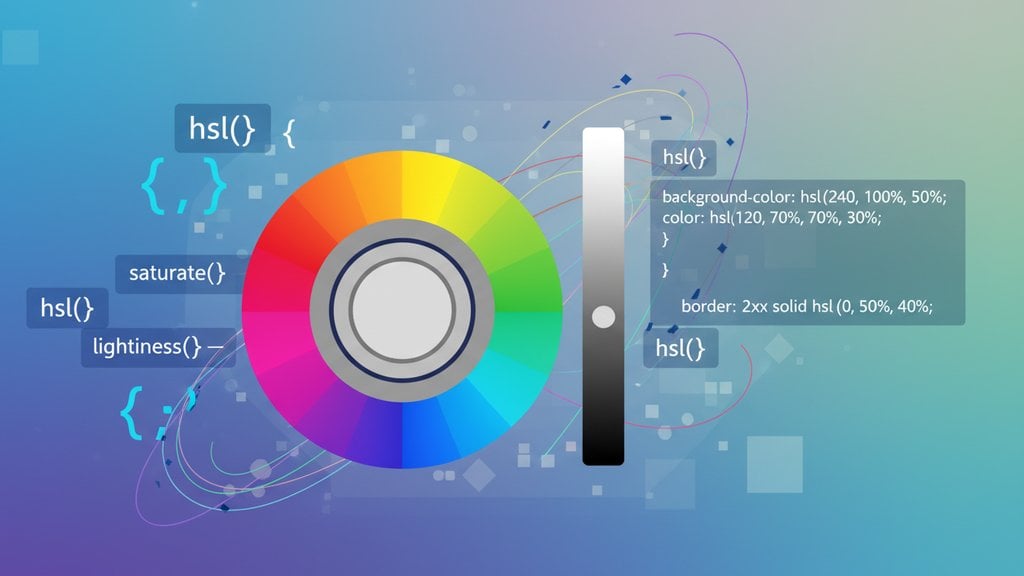
The
HSL color model
(hue, saturation, lightness) gives developers a far more human-readable way to work with color in CSS compared to RGB. Instead of guessing which combination of red, green, and blue values produces the shade you want, HSL lets you describe color the way your brain actually thinks about it: pick a color, decide how vivid it is, then decide how light or dark it should be. That shift in mental model is exactly why so many developers are ditching
rgb()
in favor of
hsl()
.
Content Table
RGB vs HSL - The Core Difference
RGB defines color by mixing three light channels: red, green, and blue, each on a scale from 0 to 255. The problem is that this is how screens render pixels, not how humans perceive color. If you want a slightly lighter blue in RGB, you have to increase all three channels in just the right proportion - there is no single knob to turn.
HSL maps directly to how people describe color in conversation:
- Hue - the actual color, expressed as a degree on a 360-degree color wheel. Red is 0, green is 120, blue is 240.
- Saturation - how vivid or washed-out the color is, from 0% (pure gray) to 100% (fully vivid).
- Lightness - how light or dark the color is, from 0% (black) to 100% (white), with 50% being the "pure" color.
Here is the same medium blue expressed in both formats:
/* RGB - what do these numbers even mean at a glance? */
color: rgb(70, 130, 180);

/* HSL - instantly readable: blue hue, moderate saturation, medium lightness */
color: hsl(207, 44%, 49%);
Both produce steel blue. But only the HSL version tells you something useful at a glance. The hue is 207 (blue-ish), saturation is moderate at 44%, and lightness sits in the middle at 49%. You can reason about it without a color picker open.
| Property | RGB | HSL |
|---|---|---|
| Readable by humans | Rarely | Yes |
| Lighten/darken a color | Adjust 3 values | Adjust lightness only |
| Change saturation | Recalculate all 3 | Adjust saturation only |
| Create color palette | Trial and error | Rotate hue by degrees |
| Theming with CSS variables | Verbose | Clean and predictable |
HSL Syntax in CSS
The CSS
hsl()
function has been supported since CSS3. The modern syntax (CSS Color Level 4) also allows a fourth alpha parameter directly inside
hsl()
, making
hsla()
largely redundant now:
/* Classic syntax */
color: hsl(207, 44%, 49%);

/* With alpha (transparency) - old way */
color: hsla(207, 44%, 49%, 0.8);

/* Modern CSS Color Level 4 syntax - commas optional, alpha with slash */
color: hsl(207 44% 49%);
color: hsl(207 44% 49% / 0.8);
color: hsl(207 44% 49% / 80%);
All major browsers support both syntaxes. The comma-free version is the direction CSS is heading, but the comma version works everywhere including Internet Explorer 9+.
Why HSL Wins for UI Development
The real power of HSL shows up the moment you need to generate variations of a color - which happens constantly in UI work.
Building a color palette in seconds
Say your brand color is a vivid green at
hsl(140, 70%, 45%)
. You need a hover state, a disabled state, and a light background tint. In HSL, you only touch one value each time:
--color-base:     hsl(140, 70%, 45%);  /* base green */
--color-hover:    hsl(140, 70%, 38%);  /* darker - just lower lightness */
--color-disabled: hsl(140, 20%, 65%);  /* washed out - lower saturation */
--color-tint:     hsl(140, 70%, 92%);  /* very light background tint */
Try doing that predictably in RGB without a color picker open. It is genuinely difficult because there is no isolated axis to adjust.
Analogous and complementary colors
Since hue is a degree on a color wheel, generating harmonious palettes is arithmetic. Analogous colors are within 30 degrees of each other. Complementary colors are 180 degrees apart:
--primary:       hsl(210, 80%, 50%);   /* blue */
--analogous-1:   hsl(180, 80%, 50%);   /* cyan - 30 degrees left */
--analogous-2:   hsl(240, 80%, 50%);   /* purple - 30 degrees right */
--complementary: hsl(30, 80%, 50%);    /* orange - 180 degrees opposite */
The saturation and lightness stay identical, so the colors feel like a cohesive family. This is exactly how design systems like Tailwind CSS and Material Design generate their color scales programmatically.
Practical CSS Examples
CSS custom properties with HSL components
One of the most powerful HSL patterns is splitting the three values into separate CSS custom properties. This lets you reassemble them anywhere and tweak individual channels on the fly:
:root {
  --brand-h: 210;
  --brand-s: 80%;
  --brand-l: 50%;
  --brand-color: hsl(var(--brand-h), var(--brand-s), var(--brand-l));
}

.button {
  background-color: var(--brand-color);
}

.button:hover {
  /* Just override lightness - no need to redefine the whole color */
  background-color: hsl(var(--brand-h), var(--brand-s), 40%);
}

.button:disabled {
  background-color: hsl(var(--brand-h), 20%, 70%);
}
hsl()
, you need commas:
hsl(var(--h), var(--s), var(--l))
. The comma-free modern syntax does not work with
var()
inside
hsl()
in all browsers yet.
Generating a full tonal scale
Design systems often need 9-10 shades of a single color (like Tailwind's 50 through 950 scale). With HSL, you can generate the entire scale by stepping lightness at regular intervals while keeping hue and saturation fixed:
:root {
  --blue-50:  hsl(210, 80%, 95%);
  --blue-100: hsl(210, 80%, 87%);
  --blue-200: hsl(210, 80%, 76%);
  --blue-300: hsl(210, 80%, 65%);
  --blue-400: hsl(210, 80%, 55%);
  --blue-500: hsl(210, 80%, 50%);  /* base */
  --blue-600: hsl(210, 80%, 43%);
  --blue-700: hsl(210, 80%, 36%);
  --blue-800: hsl(210, 80%, 26%);
  --blue-900: hsl(210, 80%, 16%);
}
For a deeper look at how color formats relate to each other, the HEX to RGB conversion guide covers the full picture of CSS color formats including when each one is the right tool.
Hover States, Theming, and Dark Mode
Hover and focus states
HSL makes hover states trivial. Instead of defining a completely separate color, you just shift the lightness:
.btn-primary {
  background: hsl(210, 80%, 50%);
  transition: background 0.2s ease;
}

.btn-primary:hover  { background: hsl(210, 80%, 43%); }
.btn-primary:active { background: hsl(210, 80%, 36%); }
.btn-primary:focus-visible {
  outline: 3px solid hsl(210, 80%, 70%);
}
Every state is clearly related to the base color. A colleague reading this code immediately understands the relationship between states.
Theming with HSL variables
HSL is the backbone of modern CSS theming. By exposing just the hue as a variable, you can let users or admins change the entire color scheme of an app by changing one number:
/* Default theme: blue */
:root {
  --theme-hue: 210;
}

/* Green theme - just swap the hue */
[data-theme="green"] {
  --theme-hue: 140;
}

/* Purple theme */
[data-theme="purple"] {
  --theme-hue: 270;
}

/* All components use the same hue variable */
.button      { background: hsl(var(--theme-hue), 75%, 50%); }
.link        { color: hsl(var(--theme-hue), 75%, 40%); }
.badge       { background: hsl(var(--theme-hue), 75%, 92%); color: hsl(var(--theme-hue), 75%, 25%); }
.focus-ring  { outline-color: hsl(var(--theme-hue), 75%, 65%); }
Dark mode with HSL
Dark mode is where HSL really pulls ahead. Instead of maintaining two completely separate color palettes, you flip lightness values within the same hue:
:root {
  --bg:   hsl(210, 20%, 98%);   /* near-white background */
  --text: hsl(210, 20%, 15%);   /* near-black text */
  --card: hsl(210, 20%, 93%);   /* slightly darker card */
}

@media (prefers-color-scheme: dark) {
  :root {
    --bg:   hsl(210, 20%, 10%);  /* flip: near-black background */
    --text: hsl(210, 20%, 90%);  /* flip: near-white text */
    --card: hsl(210, 20%, 15%);  /* slightly lighter card in dark */
  }
}
Notice that the hue (210) and saturation (20%) never change. Only lightness flips. This keeps the dark mode feeling like the same design, just inverted - which is exactly what good dark mode should do.
Browser Support and Compatibility
HSL has excellent browser support. The
hsl()
function has been available since:
- Chrome 1 (2008)
- Firefox 1 (2004)
- Safari 3.1 (2008)
- Internet Explorer 9 (2011)
- Edge 12 (2015)
The modern comma-free syntax (
hsl(210 80% 50%)
) and the slash-alpha syntax (
hsl(210 80% 50% / 0.5)
) are part of the
CSS Color Level 4 specification
and are supported in all modern browsers as of 2023. If you need IE11 support (rare at this point), stick to the comma syntax.
hsl()
with commas works in every browser your users are likely running. The modern space-separated syntax works in Chrome 90+, Firefox 89+, and Safari 14.1+, covering well over 95% of global browser usage.
You can always use a color picker to convert between HSL, RGB, and HEX formats when you need to cross-reference values or hand off colors to tools that only accept one format.
HSL vs OKLCH - What's Next?
If you want to go deeper than HSL, OKLCH is worth knowing about. It is a perceptually uniform color space, meaning that equal numeric steps in lightness or chroma actually look like equal steps to the human eye - something HSL does not fully guarantee.
The problem with HSL is that two colors with the same lightness value can look very different in perceived brightness. For example,
hsl(60, 100%, 50%)
(yellow) looks much brighter than
hsl(240, 100%, 50%)
(blue), even though both have 50% lightness. OKLCH corrects for this.
/* HSL - same lightness, different perceived brightness */
color: hsl(60, 100%, 50%);   /* yellow - looks very bright */
color: hsl(240, 100%, 50%);  /* blue - looks much darker */

/* OKLCH - same lightness, actually looks the same to the eye */
color: oklch(0.75 0.18 90);   /* yellow-ish */
color: oklch(0.75 0.18 260);  /* blue-ish - genuinely similar perceived brightness */
OKLCH also supports
wide-gamut colors
(P3 display colors) that go beyond the sRGB range HSL is limited to. Browser support for
oklch()
is solid in 2024: Chrome 111+, Firefox 113+, Safari 15.4+.
For most projects right now, HSL is the practical sweet spot: readable, maintainable, universally supported, and a massive improvement over RGB. OKLCH is the right choice when you are building a design system that needs mathematically consistent contrast ratios or you want to target wide-gamut displays.
If you are exploring color relationships visually while building your palette, the color explorer tool lets you experiment with HSL values and see how hue rotations, saturation shifts, and lightness changes interact in real time.

Pick HSL colors without the guesswork
Our color picker lets you dial in hue, saturation, and lightness values visually, then copy the exact HSL color model output straight into your CSS - no mental math required.
Try the Color Picker →
You do not need to do a full rewrite, but it is worth switching to HSL for any new color definitions you write, especially when using CSS custom properties. The biggest gains come when you are building or maintaining a design system, creating hover states, or implementing dark mode. Mixing RGB and HSL in the same project is perfectly valid CSS - browsers handle both without any performance difference.
No, there is no meaningful performance difference. The browser converts all CSS color formats to an internal representation at parse time, so whether you write
hsl(207, 44%, 49%)
or
rgb(70, 130, 180)
, the rendering engine treats them identically after that initial parse step. The choice is entirely about developer experience and maintainability, not runtime performance.
Yes, and this is one of HSL's strongest use cases in JavaScript. You can store hue, saturation, and lightness as separate numbers, then construct the color string dynamically:
element.style.color = `hsl(${hue}, ${saturation}%, ${lightness}%)`
. This makes animations, theme switching, and interactive color controls much simpler to implement than working with RGB channels, where you would need conversion math to achieve the same effects.
HSL (hue, saturation, lightness) and HSB/HSV (hue, saturation, brightness/value) are different color models even though they share the hue axis. In HSL, a lightness of 50% gives you the pure, fully saturated color. In HSB, a brightness of 100% gives you the pure color. The two models produce different results for the same saturation and brightness/lightness values. CSS uses HSL specifically - HSB/HSV is common in design tools like Photoshop and Figma but is not a native CSS format.
The conversion from HEX to HSL goes through an intermediate RGB step: first convert the HEX pairs to RGB values (0-255), normalize them to 0-1, then apply the HSL conversion formula. In practice, most developers use a color picker tool, a design tool like Figma, or a browser DevTools color picker to do this instantly rather than calculating by hand. Browser DevTools let you click any color swatch and cycle through HEX, RGB, and HSL representations.
Yes, OKLCH is more reliable for accessibility work because it is perceptually uniform - equal steps in its lightness channel correspond to equal perceived brightness changes. This makes it easier to build color palettes where contrast ratios are predictable across different hues. With HSL, yellow at 50% lightness looks much brighter than blue at 50% lightness, which can lead to accessibility surprises. For WCAG contrast compliance, OKLCH gives you more predictable results when building accessible color scales.