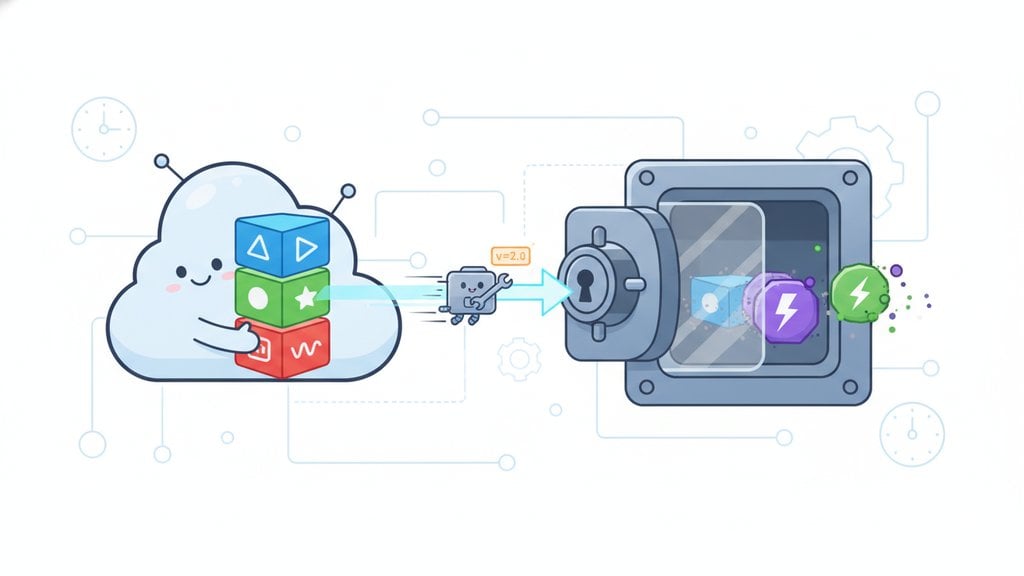
Cache busting is a technique developers use to force browsers to download a fresh version of a file instead of serving a stale cached copy. When you update a CSS file, a JavaScript bundle, or any other static asset, cache busting ensures users actually receive the new version rather than the one their browser silently stored days or weeks ago. Without it, you can deploy a fix and watch users continue experiencing the bug because their browser never asked for the updated file.
Content Table
Why Browsers Cache Static Assets
Every time a browser loads a page, it makes HTTP requests for resources like stylesheets, scripts, fonts, and images. These static assets rarely change between page loads, so downloading them repeatedly wastes bandwidth and slows things down for the user. Browsers solve this by storing copies locally in the browser cache , a directory on the user's machine.
On subsequent visits, the browser checks its cache first. If a valid cached copy exists, it skips the network request entirely and loads the file from disk. This is dramatically faster, and it is the correct behavior 99% of the time. The trouble starts that remaining 1% of the time, when you actually change the file.
When Caching Becomes a Problem
Imagine you ship a new version of
app.js
. The filename is still
app.js
, the URL is still
/static/app.js
, and the browser has a cached copy that hasn't expired yet. From the browser's perspective, nothing has changed. It serves the old file, your new code never runs, and users are confused.
This shows up in several real-world situations:
- A CSS bug fix that users can't see after you deploy it.
- A JavaScript update that breaks because the old script is still cached alongside new HTML.
- A font or icon file that renders incorrectly after a redesign.
- A service worker that caches app shell files, compounding the problem further.
HTTP Cache Headers and Cache Expiration
Before diving into cache busting techniques, you need to understand what controls caching in the first place: HTTP cache headers . These are response headers your server sends alongside every asset, telling browsers how long to keep the file and how to validate it.
The two most important ones are
Cache-Control
and
ETag
.
Cache-Control
Cache-Control
is the primary directive for controlling
cache expiration
. Common values include:
-
Cache-Control: max-age=31536000— Cache this file for one year (31,536,000 seconds). Ideal for versioned assets. -
Cache-Control: no-cache— Don't serve from cache without revalidating with the server first. Despite the name, it does NOT prevent caching entirely. -
Cache-Control: no-store— Don't cache this at all. Used for sensitive data like bank account pages. -
Cache-Control: must-revalidate— Once the max-age expires, the browser must check with the server before using a stale copy.
ETag
An
ETag
(entity tag) is a hash or version identifier that the server attaches to a response. When the browser wants to revalidate a cached file, it sends the ETag back in an
If-None-Match
header. If the file hasn't changed, the server responds with a
304 Not Modified
and no body, saving bandwidth. If the file has changed, the server sends the full new file with a new ETag.
ETags are great for revalidation, but they still require a round-trip to the server. For truly long-lived static assets, you want to avoid that round-trip entirely. That is where cache busting comes in.
Cache Busting Techniques
Cache busting works on a simple principle: if the URL changes, the browser treats it as a completely different resource and fetches it fresh. There are three main approaches.
1. Query String Versioning
The simplest approach is appending a version number or timestamp as a query string to the asset URL:
<link href="/static/styles.css?v=1.4.2" rel="stylesheet"/>
<script src="/static/app.js?v=20240815"></script>
When you deploy an update, you bump the version number or change the timestamp. The URL is now different, so the browser fetches a fresh copy.
Pros: Simple to implement, no build tooling needed, filenames stay the same.
Cons: Some CDNs and proxies ignore the query string and serve a cached version anyway. It also requires you to manually remember to update the version on every deploy.
2. Versioned Filenames
Instead of a query string, you embed the version directly in the filename:
<link href="/static/styles.v1.4.2.css" rel="stylesheet"/>
<script src="/static/app.v20240815.js"></script>
This sidesteps the CDN query-string problem because the path itself changes. CDNs and proxies treat it as a brand new file. The downside is that you still need to update every reference to the file in your HTML, and managing version numbers manually gets messy fast.
3. Content Hashing (File Fingerprinting)
This is the approach used by virtually every modern build tool. A hash of the file's actual content is computed and embedded in the filename. This is called file fingerprinting or asset versioning :
<link href="/static/styles.a3f8c2d1.css" rel="stylesheet"/>
<script src="/static/app.7b4e9f12.js"></script>
The hash (like
a3f8c2d1
) is derived from the file's content using an algorithm like MD5 or SHA-256. If the file content changes by even a single character, the hash changes, the filename changes, and the browser fetches the new file. If the content hasn't changed, the hash stays identical, so the browser uses its cached copy. You get perfect cache invalidation automatically.
File Fingerprinting: The Gold Standard
File fingerprinting is the preferred approach in production for a few key reasons. First, it is completely automatic. Build tools like Webpack , Vite, Parcel, and Rollup all support content hashing out of the box. You configure it once and every build produces correctly versioned filenames.
Second, it enables an aggressive caching strategy. Because a fingerprinted filename is unique to its content, you can serve it with a very long
Cache-Control: max-age
value (like one year) and be completely confident users will always get the correct version. The server never needs to revalidate these files because the URL itself is the proof of freshness.
Here is what a typical Webpack output configuration looks like:
// webpack.config.js
module.exports = {
  output: {
    filename: '[name].[contenthash].js',
    chunkFilename: '[name].[contenthash].chunk.js',
  },
};
Vite does this automatically in production builds with no extra configuration. The generated
index.html
always references the correct hashed filenames.
The HTML file itself (and your API responses) should use
Cache-Control: no-cache
or a very short max-age, so browsers always check for an updated HTML document. The HTML is the entry point that references all the hashed assets, so keeping it fresh is what makes the whole system work.
Cache-Control: no-cache
and all fingerprinted static assets with
Cache-Control: max-age=31536000, immutable
. The
immutable
directive tells browsers not to even bother revalidating the file during its max-age period.
If you are working on the CSS side of your project and want to keep your stylesheets clean and optimized before they go through a fingerprinting pipeline, tools like a CSS minifier can reduce file size before hashing, and a JS minifier can do the same for your scripts. Smaller files mean faster downloads even on a cache miss.
When to Use Each Approach
| Technique | Best For | CDN Safe | Automated |
|---|---|---|---|
| Query string versioning | Simple projects, no build tool, quick fixes | Sometimes (depends on CDN config) | Manual |
| Versioned filenames | CDN-heavy setups, manual deployments | Yes | Manual or scripted |
| File fingerprinting / content hashing | Any project with a build step (React, Vue, Angular, etc.) | Yes | Fully automatic |
If you are running a simple static site with no build pipeline, query strings are fine. If you are deploying through a CDN (Cloudflare, Fastly, AWS CloudFront), use either versioned filenames or file fingerprinting to guarantee the CDN picks up your changes. If you have any kind of build step at all, use content hashing. It is the most reliable approach and requires zero ongoing manual work once configured.
One more thing worth knowing: cache busting applies to more than just CSS and JS. Images, fonts, SVG sprites, and JSON data files used as static assets all benefit from the same treatment. Any file that can be cached and can change should have a cache-busting strategy.
For a broader look at how automated tasks and scheduled jobs can tie into deployment pipelines (like automatically running build scripts that generate fingerprinted assets), the concept of scheduled automation with cron jobs is worth understanding as part of your overall deployment workflow.

Optimize your static assets before they hit the cache
Smaller files mean faster downloads on every cache miss. Use our free JS minifier to compress your JavaScript files before running them through a cache busting pipeline, so users get the leanest possible bundle every time.
Minify Your JS →
Cache busting works for any static asset the browser can cache, including images (PNG, JPEG, WebP, SVG), web fonts (WOFF2, WOFF), and even JSON files served as static data. If a file can be cached and can change between deployments, it should have a cache-busting strategy. Most build tools that fingerprint JS and CSS will handle images and fonts in the same pipeline automatically.
no-cache
means the browser can store the file but must revalidate it with the server before using it on the next request. If the server responds with 304 Not Modified, the cached copy is used.
no-store
means the browser must not store the file at all, not even temporarily. Use
no-cache
for HTML documents and
no-store
only for genuinely sensitive responses like banking data or private API payloads.
Some CDNs are configured to strip or ignore query strings when building their cache key, treating
/app.js?v=1
and
/app.js?v=2
as the same cached object. This is a performance optimization that backfires for cache busting. Cloudflare, for example, ignores query strings by default on some plan tiers. Using a versioned filename or content hash in the path itself avoids this problem entirely, since the path is always part of the CDN cache key.
The
immutable
directive tells the browser that the file will never change during its max-age period, so it should not bother sending a revalidation request even when the user manually refreshes the page. This is safe to use only on fingerprinted assets, where the content hash guarantees the filename changes whenever the content changes. It eliminates unnecessary conditional requests and can meaningfully improve performance on repeat visits.
Service workers maintain their own cache layer separate from the browser's HTTP cache, which can make stale asset problems worse if not handled carefully. A service worker can serve old cached files even after you have deployed new fingerprinted assets and the browser cache has been busted. You need to version your service worker's cache name (for example,
app-cache-v2
) and implement an activation step that deletes old caches whenever a new service worker takes control.
Yes. The simplest approach is to manually append a query string like
?v=2
to your asset URLs in HTML and update it each time you deploy a change. For a slightly more automated approach without a full build pipeline, a simple server-side script (in PHP, Python, or Node.js) can read a file's last-modified timestamp or compute a short MD5 hash and inject it into the URL at render time, giving you automatic invalidation without Webpack or Vite.